Information Technology Department
Overview
The mission of the Barnes-Jewish College Goldfarb School of Nursing Information Technology (GSON-IT) department is to empower the Goldfarb community with seamless technology solutions, keeping you connected and productive—on and off campus.
Our dedicated team provides robust support for students, faculty, and staff, ensuring that your devices, systems, and accounts function efficiently. From resolving tech issues to enhancing classroom technology and connectivity, we are here to help you succeed.
Whether you’re accessing the wireless network, navigating Canvas, or troubleshooting classroom technology, the GSON-IT department is your partner in technology excellence.
Services
- Student support: Comprehensive assistance for connecting personal devices to Goldfarb resources, including Canvas and the wireless network
- Classroom technology support: Setup, maintenance, and troubleshooting for classroom tools and AV systems
- Desktop and remote support: Help with hardware, software, and connectivity issues, even when you're away from campus
- File and printing services: Guidance for file storage via OneDrive and access to printing stations throughout the school
Contact IT support
- On-campus locations:
- 3rd floor: Cubes 3M, 3N
- 5th floor: Room 523
- Hours: 8 a.m.–4 p.m., Monday–Friday
- Phone: 314-362-4700, An operator will create a support ticket, and a Goldfarb IT representative will contact you the next business day
Frequently asked questions
- For Microsoft-based systems (Outlook, Canvas), use your BJC ID (e.g., [email protected])
- Ensure you’re logged out of other Microsoft accounts, such as WashU or corporate accounts, to avoid login errors. If you must use another Microsoft account at the same time, we suggest using a private or incognito browser session for GSON apps
- Use the Self-Service Password Reset Tool
- For additional help, contact GSON-IT at 314-362-4700
Student support: Canvas
Canvas offers students 24/7 technical support. Simply click the Help button from the Global Navigation Menu and select Chat with Canvas Support (Students) or Canvas Support Hotline. You can also search the Canvas Guides to find answers or Report a Problem.
Canvas FAQs
Below you will find a list of questions you might encounter when working with Canvas and what to do to answer them.
- Make sure your BJC credentials are still working. Try logging into your Microsoft 365 account or your Banner account. If you can log in there, the issue may be with Canvas
- Make sure you are logging into the correct version of Canvas
- If your issue is still not resolved, contact the BJC Help Desk by calling 314-362-4700. An operator will create a support ticket, and a Goldfarb IT representative will contact you the next business day
You may need to check your complete course enrollments:
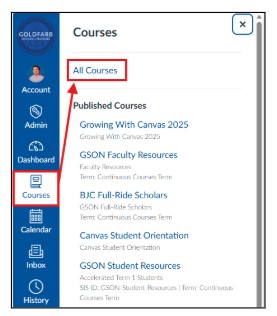
In the Global Navigation Menu on the left side of your screen, click Courses and then All Courses
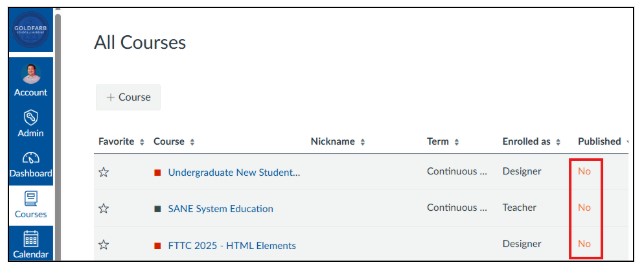
If the course is unpublished (“No” displays in the Published column), contact your instructor
- If you can verify that the course is published, check with your Academic and Student Support Advisor to ensure you are truly enrolled in the course. Additionally, if self-registration is still open on Banner, register yourself for that course
- If it has been less than 24 hours since you registered for the course, it might take until the next day to appear in Canvas
- If it has been more than 24 hours since you registered, contact 24/7 Canvas Support via the Help button
No. However, resources are available to help students learn to use and navigate Canvas. Please navigate to the GSON Student Resources course in Canvas. Then head to the Welcome & Information module. From there, you will find the resources on the How to Use Canvas page and the Canvas Student Orientation page.
Courses on Canvas close at the end of the term and are not viewable afterwards. Check with your instructor to verify the close date of the course.
After graduation, your BJC credentials will continue to be active for certain systems for 90 days. You will not, however, be able to access any term-based course.
Note: If you leave Goldfarb for any reason other than graduation, your BJC credentials will be immediately revoked and you will not be able to access any system, including Canvas.
If you become employed by BJC or WashU Medicine, your BJC credentials may remain active after 90 days, depending on your role.
You can find it here on the Goldfarb Information Technology Department webpage. Scroll to the Students section of this page for the answers to these questions.
Reach out to your Academic and Student Support Advisor to verify that you are not truly enrolled in that course. If you are not enrolled in that course, call the BJC Help Desk at 314-362-4700. An operator will create a support ticket, and a Goldfarb IT representative will contact you the next business day about removing that course from your Canvas Dashboard.
Accounts are automatically created for students after enrollment. No action is needed to create an account.
Contact your instructor. You may have discovered a broken link. Include details about what you attempted to access.
Canvas displays the name you provided the College. To change it, please contact the Registration Office. You will need to complete the Personal Information Update form available online or on the 4th floor. This form will need to be accompanied by the necessary documentation.
Visit the Turnitin guides on Academic Integrity tools webpage to learn how to access and interpret the Canvas Similarity Report.
New employees
All GSON-related files must be saved to OneDrive. Avoid storing files on local hard drives or personal accounts.
Multi-function printers are available on all floors. Contact GSON-IT for installation instructions at 314-362-4700.
Students
Your laptop must meet the following minimum requirements:
- Windows 11 or OS X Sierra (10.11)
- Users must regularly update the device to ensure access to the latest features, security enhancements,
bug fixes and optimal performance - 12 GB RAM or higher and 500 GB or higher storage
- Wireless connectivity and built-in webcam with a microphone
- Note: iPad and Chromebooks are not fully compatible with some exam software
Connect to the GSON wireless network for optimal performance.
Yes, GSON-IT can assist with issues on personal devices. Visit the 3rd-floor support team at cubes 3M or 3N.